What Accelerated Software offer to you?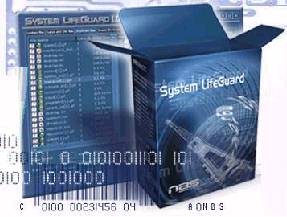
- Increase Your Computer Speed by up to 100%
- Reduce Windows and Application Crashes!
- Optimize Your Virtual Memory to Make Your Hard Disk Run Better!
- Helps Stop Internet Explorer Freezing and Crashing!
- Save $100’s in Costly Hardware Upgrades!
- Control Which Programs Start When You Start Windows!
- Make Windows Start Faster!
- Cleans Your Hard Disk Files Making Your PC Run Better!
- Thoroughly Uninstalls Your Unwanted Programs!
- Registry Cleaner to Clear Invalid Registry Entries!
- System Tweaker to fine-tune Basic Functions of Your Computer!
- Internet Privacy to Clean Internet History, Cookies, and Cache!
- System Backup & Restore With a FTP Backup Option!
“Why pay $199 for a new Windows XP version when you can buy this special bundle software package which does almost the same job at a fraction of the Cost?”
Release RAM is an inexpensive alternative to upgrading to Windows XP.
Why? Many people are buying Windows XP because it is more stable and crashes less. This special offer contains three software programs which will help make your computer run faster and crash less!
The savings can be huge especially if you have more than one computer. Microsoft is making you pay for each computer that you install Windows XP on. With this special offer you can increase the stability of your existing system for only $29.95 (or $49.99 with System LifeGuard) on up to 3 computers. That’s a saving of hundreds of dollars on upgrade costs!
On older slower computers, Windows XP will actually slow your computer down as it requires a lot of resources to run it. Release RAM will actually make your computer run faster.
This special offer comes with a Risk Free Money Back Guarantee (more info) so if it does not work for you, and if we cannot help you make it run as advertised then you can get your money back.
A Review on Release RAM
Since the beginning of recorded history, the human race has always sought the unobtainable. The Holy Grail, the fountain of youth, the silver bullet, the miracle pill – a day without the dreaded Window’s Blue Screen of Death, or worse yet, the distinct impression you are now looking at nothing more than a screen shot of what used to be a responsive and functional operating system.
Having been a faithful Windows user (like I really had much of a choice until recently) since it was first released, and having tried almost every software program that claims to monitor and prevent Window’s crashes, I do believe I have found a solution that works far better than all the rest.
Release RAM is a small program that constantly monitors the amount of available RAM on your system. Sure, we all know Windows is notorious for using too much RAM and memory leaks. Add to that all the third party applications that load huge DLLs into RAM and then leave them there even after the application is terminated – but I had no idea how bad the situation was until I could see it happening in real time – constantly updated right in my task bar.
I must admit I push my Windows 98 machines pretty hard. Most only have 128 MB of RAM which you would think would be more than enough as long as I not messing with full length pirated DVD movies or something. Anyway, after installing a version of Release Ram, I was amazed to see how much of my available RAM was used – and never returned – during the course of opening, using and then closing the various programs I use throughout the day. Its not uncommon to see a newly launched program take 10 – 30 MB of RAM. But to see it only return 1 -5 MB when its closed gets a little discouraging. Do this a few times with various programs and you soon find Windows acting very strangely (or not at all) because it simply does not have any available RAM to use to do whatever it is that Windows does.
Before installing Release RAM, I would experience a total Windows crash at least once per day. On many days such crashes were a constant companion. After installing Release RAM and setting up some of its many automated functions, I sat back in amazement about a week later to realize that I had not experienced a single Windows crash since firing up this little gem of a program. I have my copy set to launch with Windows, wait 60 seconds after all those nasty little Terminate and Stay Resident programs load – then to automatically free up at least 88 MB of RAM. I also have it set to check every 30 minutes and make sure I have at least 64 MB free, and if not, to make it so. If my system every drops below 5MB of available RAM, the program automatically jumps in and frees up all the available RAM that is not being currently used by the programs I have open.
Well, being very busy and all that, I didn’t register Release RAM with my registration key. I was automatically notified of this by the program after a few days, which also informed me that many of the automated monitoring features were now disabled. However, the one feature still intact was the ability to right-click on the little Release RAM icon in the System Tray to automatically release my designated 88 MB of RAM. I used this feature often as I watch the amount of available RAM drop like a thermometer in the Arctic the more I used my machine.
Then, after a few days later all features were disabled except the little Task Bar area that displays the amount of available RAM in real time. I watched in horror several times as I noticed my RAM had gone down to less than 1 MB (although I had closed all open programs) and I mistakenly launched yet another program. Kaazam! Man, I could swear my keyboard and mouse used to do something here – after waiting about 5 minutes for some kind of life from Windows, I resorted to the old reset switch, then to find my email with my registration.
If I had the time, I would love to do a benchmark test because I know I personally have had about 95% fewer crashes, slow downs and weird goings on since installing this program. I would highly recommend this product for anybody using Windows 95, 98, ME, 2000, XP. Future updates are all free.
Now you don’t have to rush to a store to buy Windows XP or extra memory just so you won’t have as many Windows crashes. Release RAM will manage your computer memory and resources so that you will forget about Windows crashes, while Acceleration Startup Manager will help you to diagnose which programs can be causing problems to your computer while making your computer start faster.
System LifeGuard
Every time you run programs or use the internet, unwanted files and procedures are stored on your hard disk. Just using your computer normally, accumulates old material that begins to slow down the operation of your hardware and software.
So just like your car’s engine needs a regular service to keep it running smoothly, your computer needs System LifeGuard to safely and simply wash away technical clutter, maintain peak operating efficiency, and protect your vital data from loss.
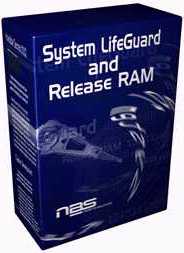
System LifeGuard Features :
- Easy to use – wizard-driven interface
- Finds and deletes all junk files
- Organizes your data
- Cleans up your registry
- Safely uninstalls your unwanted programs
- Compresses and backs up your vital data
- Finds and removes invalid links.
- Detects large or obsolete files.
- Protects your privacy by removing all traces of internet activity
- Click here to find out more
System LifeGuard is available as an additional extra to our Release RAM bundle.
This Special Offer Also Includes Acceleration Startup Manager
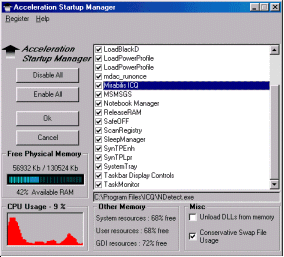
Acceleration Startup Manager :
- Controls what programs start when you start Windows
- Make your computer start and run faster
- Helps locate programs which take up too much system resources
- Helps to diagnose which programs can be causing problems to your computer
Does your computer crash often?
Do you get that Blue Screen of Death?
Does Internet Explorer Freeze Up all the Time?
Does your computer become slower the longer you use it?If you answered YES! to any of these questions then this special offer is for you.
Find out more information here
- Angka Togel SGP
 Angka togel sgp is the most common and popular type of online gambling, and most people have heard of it before. It’s easy to use, has many different features, and allows you to make money while enjoying the action. But you need to know a few things first before you start playing.
Angka main
Angka Main Togel SGP is a type of togel game. It’s one of the many togel games that you can play in Singapore. It is also one of the togel games that you can play in Hong Kong, Indonesia, and other parts of the world. It is also one of the togel sites that you can play online. You can play it on your computer, smartphone, or tablet. It is also one of the togel site that you can play with your friends. You can also use it to predict the outcome of the SGP. There are a lot of things to learn from this type of game. You will have to make sure that you are playing it in the right way. You will also have to do your homework so that you can be able to win. In addition, you will have to learn the tricks of the trade when it comes to playing the togel game. This is especially true if you want to win a lot of money in the long run.Pasaran togel sgp dan hongkong hari ini
HK togel is one of the most popular togel games in the world. The game is very simple to play online. You can play it on your desktop or smartphone. It also provides you with a chance to win uang tunai. HK togel has been played since 1890. You can play it online, but it requires you to know certain information about the game. This information is called the hk data. You can obtain this information by going to the togel hongkong website. You can also get this information from online togel games. This data can help you in determining the pola of the togel hongkong game. This data is important to HK togel because it can help you improve your win rate. It is also reliable and you can rely on it. HK togel requires lima angka and acuan for pemain. The data hk can also help you in determining the angka of the main togel hongkong hari ini.Keluaran togel sgp dan keluaran hk hari ini
Whether you are a togel player or just interested in the game, you need to be informed about the relevant information regarding the keluaran togel sgp and keluaran hk hari ini. You can access the information through different sites online, but you should also know how to utilize the information for your own advantage. If you want to get information about the keluaran togel hk hari ini, you can visit the official website of the togel hongkong. There, you can find information about the latest results. In addition, you can also find out how the togel hongkong is ranked in terms of pola. The pola is a measure of how good a particular bettor is. You can also find out information about how many times a bettor has won or lost. Togel hk hari ini also offers a number of different options, such as using smartphones to play. This allows a bettor to play a game online without having to use a VPN.Permainan togel sgp
Among the togel games that have been very popular is togel singapore. This game is played by many online togel players. This game has high payouts. The payouts can reach up to 3000 dollars. Togel SGP is also very popular in Indonesia. Before playing togel SGP, it is advisable for you to know what to do. First, you have to analyze the keluaran dt sgp. You have to do this because this data can help you in predicition. If you know the right information, you can win money. Besides, you also have to know the Covid-19 virus. This virus can cause a lot of problems for toto sgp players. Therefore, you need to be very careful. Toto sgp players should also be aware of the pengeluaran SGP. This data can be obtained by visiting the site. You can also use the live draw sgp model. This is a good thing to do because it will make you get valid results. - How to Play Togel Singapore
 The game of togel Singapore is a form of gambling that involves risk and enjoyment. The game of chance has made gambling a popular pastime in many parts of the world. It is a game of chance, so the results are never predictable, and it has gained in popularity because of the online industry’s growth and the growth of digital currencies. These days, nearly everyone has access to a smartphone and an internet connection, which makes it easy to play online. While the convenience of online games makes it more attractive, they do come with some risk and enjoyment.
Pasaran togel singapore
If you are thinking of trying your luck at pasaran togel Singapore, you’ve come to the right place. The World Lottery Association has certified several sites offering togel Singapore. Listed below are some of the most reliable sites for online lotteries. You can find them at jeniustoto.com. Here, you can find pasaran togel Singapore results and kudatogel. Just sign up for an account today and start playing! Toto sgp is another popular online togel game that has been around for many years. Similar to online toto games, this Singapore version has been around for quite some time. In addition to online versions, you can find them offline as well. There are a number of advantages to playing toto sgp online. Listed below are some of the benefits of playing toto sgp online. You can win big by playing a few games on your favorite online sites!Legality of the game in Singapore
Togel is a popular game in many Asian countries. In Singapore, you can play togel from the comfort of your home. You can easily transact money using your computer or smart device. You can also play togel online through reputed togel websites that are hosted by the government of Singapore. Togel in Singapore is legal, and the market is one of the largest in the world. You can earn big earnings playing togel in Singapore. The first step in playing Togel in Singapore is to choose a reputable website. Make sure the site is licensed and secure. The more people playing on it, the more trustworthy it is. You also want to make sure the website follows the local laws. You don’t want to risk your privacy by using a site that’s not licensed. You’ll also lose money if you don’t plan ahead.Multigame options
Several advantages of Togel Singapore include multigame options. This is an added bonus for players, as they can practice different games and become masters in them. Additionally, many Togel Singapore casinos offer bonuses and incentives for new players. By taking advantage of these incentives, new players can enjoy the same gaming experience as seasoned players. And, because Togel Singapore is a non-cash game, players can play it from anywhere in the world. The best sites will also have the highest traffic and good reviews. This is because customers will often share their experience with these sites, which will help you choose the best site for you. Also, it’s a good idea to check the number of players on a given site. The higher the number of players, the better the site. And, remember, if you see that a certain site is popular with many players, this means it’s a good site!Discounts
There are many ways in which you can get discounts when you play Togel Singapore. The first way is to play at popular sites, as these are more trustworthy and offer a better level of convenience. Also, you can get discounts if you play togel online, so be sure to check out the deals on the site you’re interested in! If you play togel on the internet, you can expect to have better comforts and conveniences, since you’ll be able to play togel on a high quality unit. Other ways of getting discounts include using promo codes and depositing money on a daily basis. You can also get cash back on the deposits you make at Togel Singapore sites, so it’s worth checking these out before you deposit money. Using a promo code is another way to get huge discounts. But before you play Togel Singapore games, remember to use strategy and tactics. Your deposits are not refundable, so it’s important to do some research and find out who the top teams are.Cash back
You can find a lot of websites offering Togel Singapore games. However, you must do a thorough research to find a legitimate one. Besides offering massive discounts on deposits, some sites also offer cash back on daily deposits. Regardless of the website you choose, the most important thing to remember is to play within your means and stay within your strategy. Gambling is a risky endeavor, but it is fun, too! Togel Singapore offers an ideal opportunity for gamers in Singapore to earn cash back when playing at the site. The site can be accessed via your laptop, tablet, or smartphone, allowing you to play anytime and anywhere. It also provides convenience and security because you do not need to carry cash with you. In addition, you can be sure of the safety of your information since all transactions are made through a secure site. You can also use live chat to communicate with other players on the site.